Orchestrator: connect channels, assign AI Agents, and set tone, style, and restrictions
In this article you'll learn what an orchestrator is, how to connect a channel, how to assign AI Agents, and how to set the tone, style, and restrictions it uses to drive every conversation.
The orchestrator is the entry point of your project in Botmaker and the heart of version 3.0. It receives the messages that arrive through your channels and is the one that actually talks to the user: it holds the voice and tone, decides how to respond, and coordinates your team of AI Agents. It reads the intent of each message, picks the right agent (or agents) to resolve it, and synthesizes a single response from what each one contributes. AI Agents never talk to the user directly; the orchestrator always does.
You can:
- Create one or more orchestrators for your project.
- Connect and disconnect input channels in real time.
- Assign the AI Agents among which it distributes conversations (and reuse the same agent across several orchestrators).
- Define the tone and style it converses with: tone, response length, personality, and language.
- Define restrictions it must respect when interacting with users.
- Test its behavior and review the execution history with the reasoning of each conversation.
For now, Botmaker 3.0 works on chat channels (for example, webchat, WhatsApp, Instagram, and Facebook). Voice and email support is in development.
Key concepts
Orchestrator: the coordinating layer that receives messages from the channels, talks to the user, and routes each query to the corresponding AI Agent based on its intent. It can combine several agents in a single response.
Channel: the medium through which messages come in and go out (webchat, WhatsApp, Instagram, Facebook, etc.). It's the face of the business to the user.
AI Agent: a unit that resolves a type of task or query. The orchestrator chooses which agent to route to by reading each one's description (activation).
Agent description (activation): a short, natural-language phrase that states when the agent should be used. Keep it concise, around 10 to 15 words.
Tone and style: the definition of how the orchestrator converses (tone, length, personality, language). It's set on the orchestrator, not on the agents.
Restrictions: limits and behaviors the orchestrator must respect when interacting with users.
Per-channel memory: the orchestrator remembers the conversation context within a single channel, but it does not identify the same user across different channels on its own.
How to set up your orchestrator
Step 1: Create or open an orchestrator
Go to the section where you design your AI Agents. In the left side menu, under Orchestrators, click the + button to create a new one (or use Create orchestrator if the project is empty), or select an existing one to edit it. When you create it, give it a name; you can rename it later using the pencil next to the title.

Step 2: Connect a channel
In the Orchestrator block, in the CHANNELS column, click + Add channel and choose the channel to connect. From that moment on, every message that comes in through that channel will be received and routed by this orchestrator. You can connect or disconnect channels at any time.

Note: a channel is linked to a single orchestrator (1:1 relationship), so conversations don't get mixed up. A single orchestrator, however, can have several channels. If you connect a mailbox, the link is done through Mailbot, and then you return to AI Agents to continue.
Step 3: Assign your AI Agents
In the AGENTS column, click + Add agent and select the agents among which it will distribute conversations. You don't need to program the routing logic: the orchestrator decides by reading each agent's description (activation). The same agent can be reused across different orchestrators.

Note: if the orchestrator has no agent assigned, it will receive the channel's messages but won't have anyone to route them to.
Step 4: Set the tone and style
In the Tone and style section you define how the orchestrator converses: the tone (formal, informal, friendly), the length of responses, the personality, and the language. The orchestrator adapts the language to the user's. You can also enable dynamic buttons.

Note: write it in natural language —in 3.0 there's no need for "prompt engineering"— and keep it short.
Step 5: Set the restrictions
In the Restrictions section, describe the limits the orchestrator must respect (for example: don't mention competitors, don't give figures or quotes, or don't answer queries unrelated to the business).

Step 6: Test and review executions
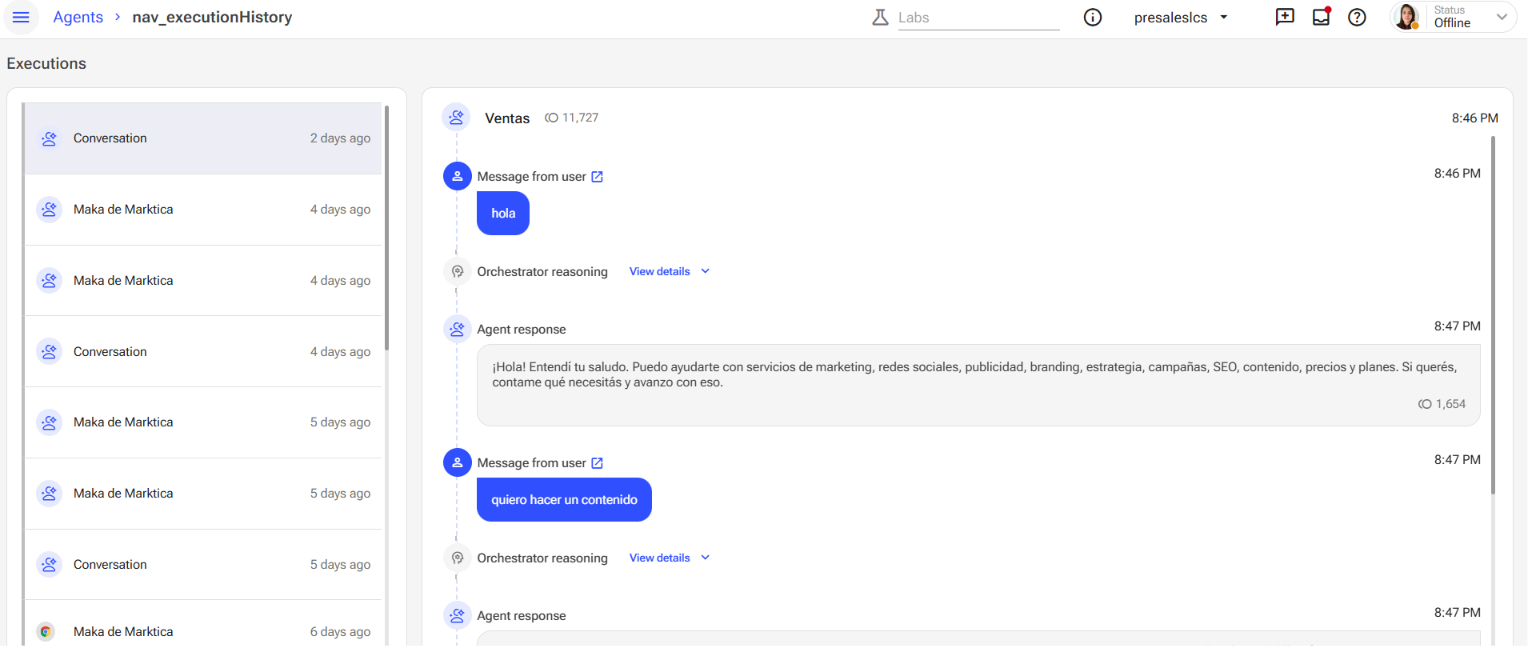
Use the Test button to simulate conversations and see the orchestrator's reasoning. In Executions you review the history of real conversations with their reasoning. When everything is ready, publish your agents' changes with the Publish button.

Executions:
Testing:

Note: during testing you can type @reset to clear the context. Changes are saved automatically, and the orchestrator supports real-time collaborative editing.
One orchestrator per channel
You can create several orchestrators that reuse the same AI Agents but converse differently depending on the channel. For example, one for Instagram with a casual tone and emojis, and another for email that's more formal, without duplicating your agents' work.
Remember to visit our Help Center for further information.